Foundations · Lesson 1.4
A tour of the UI Builder editor
- UI Builder
- UI events
The editor at a glance
Here is the editor with an empty page open, exactly as it looks on the Australia release. Tap each number to see what that part of the screen is for.
Tap a number on the screenshot to see what that part does.
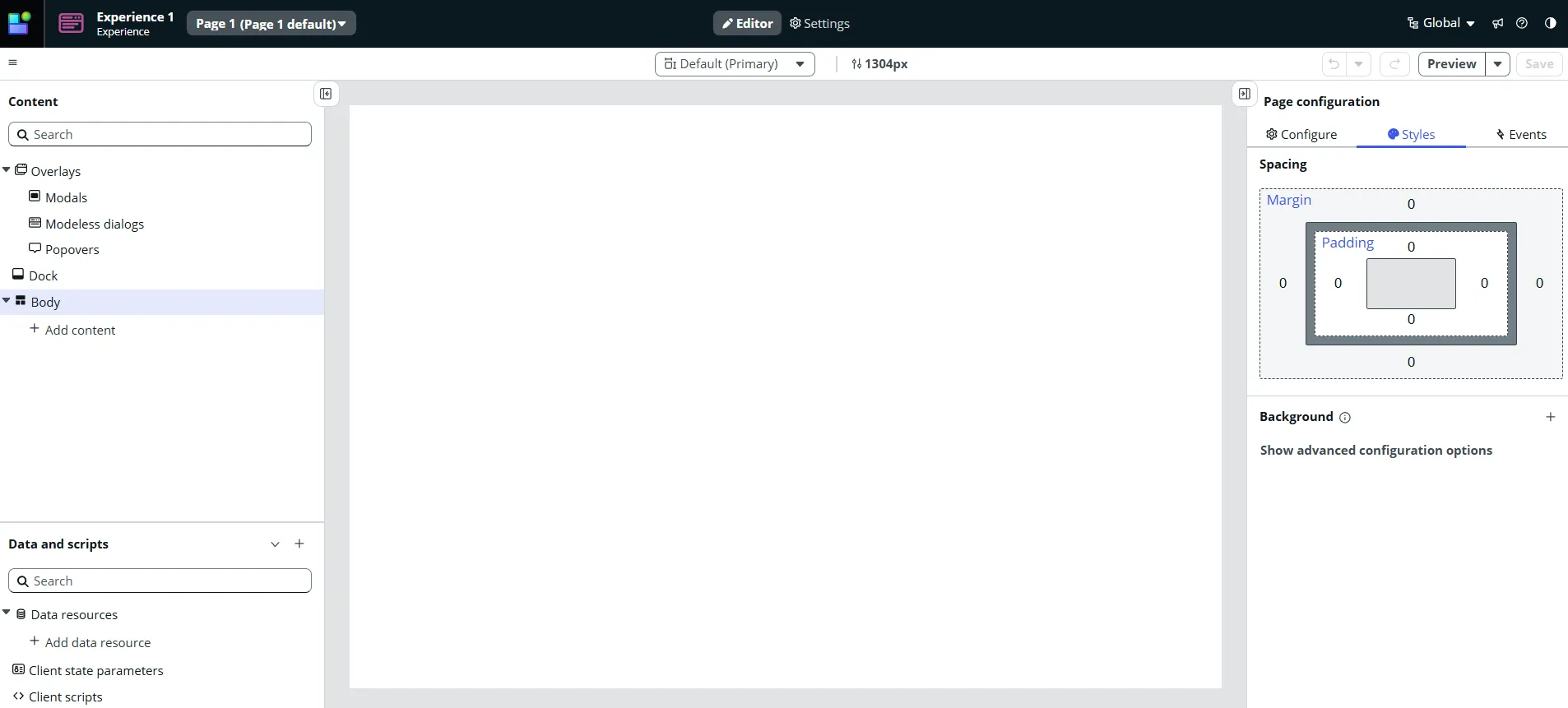
Shows which page and which variant you are editing, here "Page 1 (Page 1 default)". Open it to jump to another page or variant of the same experience.
Editor is where you build the page. Settings holds the details of the page and variant, such as its URL and parameters, and the variant's audience, conditions and order.
Choose the screen size the stage shows, with its width in pixels next to it. Use it to check how the page looks on smaller screens before users find out for you.
Undo and redo your last changes, open Preview to see the page as users will, and Save to store your work. Nothing is stored until you click Save.
Every component on the page, listed in the order they appear and nested the way they sit inside each other. Body holds the main page content, and Overlays holds things like modals and popovers.
Everything that is not visible on the page: data resources that fetch records, client state parameters that remember things, and client scripts for custom logic.
A live picture of the page you are building. Click a component here to select it, or use the + buttons that appear to add new components in a specific place.
The settings of whatever is selected, split into the Configure, Styles and Events tabs. With nothing selected, as here, it shows the settings of the page itself.
The flow is always the same: you select something in the Content panel or on the stage, then change it in the configuration panel on the right.
Configure, Styles and Events
The three tabs on the right are where beginners get mixed up most often. Each tab answers a different question about the selected ComponentA ready-made building block you place on a UI Builder page, such as a button, a list, a card or a set of tabs.Learn more .
| Tab | The question it answers | Examples |
|---|---|---|
| Configure | What does it show and do? | A heading’s text, a dropdown’s placeholder, a list’s table and columns |
| Styles | How does it look and where does it sit? | Spacing, size, background colour, borders |
| Events | What happens when something occurs? | Opening a record when a button is clicked, reacting when an option is picked |
A quick rule of thumb: if you are changing words or data, go to Configure. If you are changing appearance, go to Styles. If you want something to happen, go to Events.
When you select a component, the top of the panel also shows its name and ID, such as Dropdown 1 and dropdown_1. Glance at it before changing anything, so you know you are editing the right component.
Data and scripts, in brief
Components show things, but they do not fetch data by themselves. That is the job of Data resourceSomething you add to a UI Builder page to fetch data, such as a list of records, so components can show it.Learn more , which live in the Data and scripts panel along with client state parameters, a kind of page memory, and client scripts for custom logic.
You will spend a whole module on this panel later. For now, just know where it is: whenever a component needs records from the database, the answer starts in Data and scripts, not in the component itself.
Saving and previewing
Two habits will save you a lot of confusion:
- Nothing is stored until you click Save. The stage updates the moment you change a setting, which makes it feel like your work is done, but it is not saved until you click the button.
- The stage is not the real page. It shows the variant on its own. Preview opens the page the way a real user sees it, inside its app shell and with real data, so you can check it properly.
Practice: find it in the editor
Now the same editor with a Dropdown component selected. Read each task and click where you would do it.
Click or tap the right place on the screenshot.
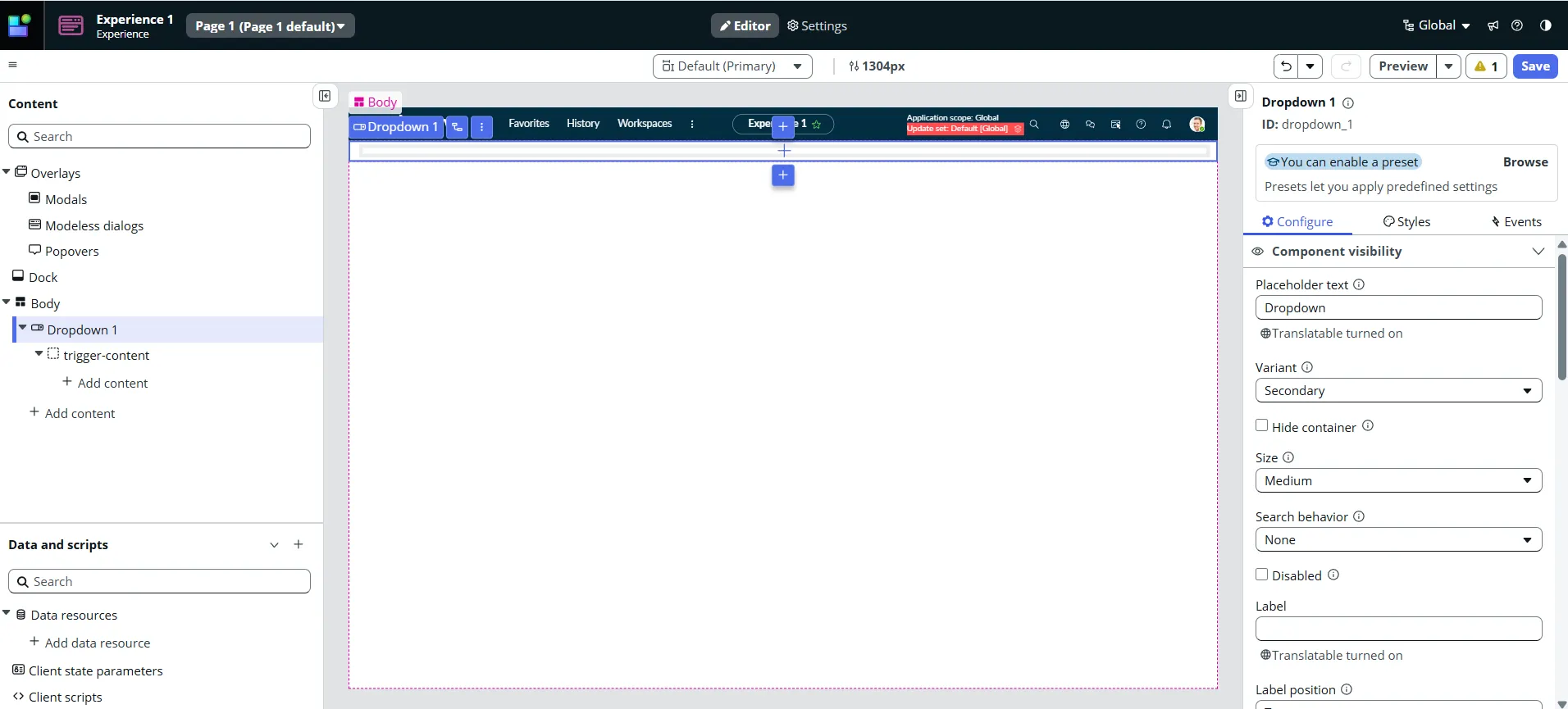
Change the placeholder text the dropdown shows.
Answer: the Configure tab of the panel on the right, in the Placeholder text property.
What a component shows is set through its properties on the Configure tab. With the dropdown selected, Placeholder text is right there.
Make something happen when the user picks an option.
Answer: the Events tab, top right of the configuration panel.
Reacting to something the user does, like picking an option, is done by adding a handler on the Events tab.
Add more space around the dropdown.
Answer: the Styles tab, between Configure and Events.
Spacing, size, colours and borders are about how a component looks, so they live on the Styles tab.
Select the dropdown's trigger-content slot precisely, without clicking on the stage.
Answer: the trigger-content entry in the Content panel on the left.
The content tree shows every component and slot in its exact place, so you can select nested items that are hard to click on the stage.
Fetch the list of records the dropdown should offer.
Answer: Add data resource, under Data resources in the Data and scripts panel.
Components do not fetch data themselves. A data resource does, and you add it in the Data and scripts panel.
Store the changes you have made so far.
Answer: the Save button, top right.
The stage updates as you work, but nothing is stored until you click Save.
See the page the way users will, inside its app shell.
Answer: the Preview button, next to Save.
The stage shows the variant on its own. Preview opens the real page with its shell and real data.
Check how the page looks on a narrower screen.
Answer: the screen size selector and width, in the middle of the second bar.
The screen size controls change the width of the stage, so you can see how the layout adapts before users do.
See it in your instance
- Open UI Builder in your PDI (Personal Developer Instance)A free ServiceNow instance you get from developer.servicenow.com to practise on safely.Learn more and open any experience.
- Open a page and one of its variants. If ServiceNow tells you the variant is read-only, that is fine: it is perfect for exploring safely.
- Click a few entries in the Content panel and watch the matching component get outlined on the stage.
- With a component selected, open the Configure, Styles and Events tabs and see what each one offers.
- Look at the Data and scripts panel to see which data resources the page uses.
- Click Preview to see the same page as users see it. Do not save anything.
What’s next
You now know your way around the UI Builder editor. In the next lesson, Build your first page, you will put all of it together and build a working page from scratch in your own experience.
Quick check
You want a button to open a record page when it is clicked. Which tab of the configuration panel do you use?
Show answer
Events
Making something happen in response to a user action, like a click, is done on the Events tab, by adding a handler for the button’s click event. Configure would change what the button says, and Styles how it looks.
Was this lesson helpful?
Thanks! Glad it helped. 🙌
Thank you. We will use this to improve the lesson.
Spotted a mistake, or a step that looks different in your instance?