Foundations · Lesson 1.5
Build your first UI Builder page
- UI Builder
- Workspaces
How challenges work
Every challenge on GlideNest follows the same steps, the way real project work does:
- Read the ticket. It is written like a story you would get on a real project, with acceptance criteria that say exactly what must work.
- Try the finished page. A live demo shows the result. Your build can look different, but it must behave the same way.
- Build it in your PDI. Keep this page open in one tab and your instance in another.
- Stuck? Take a hint. Hints open one at a time, from a gentle nudge to almost the answer.
- Still stuck? Open the full solution. It walks through every step, and you can import the finished build into your PDI to see how it is made.
- Check your build and mark it done. Tick each criterion once you have tested it. Your progress is saved in this browser.
Before you start
The list on your page shows incidents assigned to you, so make sure you have a few. In your PDI, open Incident > Open, open two or three incidents, set Assigned to to your own user and save each one. Resolve one of them as well: that lets you check that resolved incidents disappear from your page.
The challenge
Build a "My open incidents" page
STRY0010021
As a support agent, I want a page that lists only my own open incidents, so that I can see my workload at a glance without filtering a long list every morning.
Acceptance criteria
- The page lives in its own new experience and opens at its own URL, such as
/now/it-team/my-incidents. - The page shows the heading My open incidents.
- The list shows only active incidents. Resolved and closed ones never appear.
- The list shows only incidents assigned to the logged-in user. When you impersonate someone else, the rows change.
- The list shows at least the Number, Short description, Priority and State columns.
See the finished page
Try it out. Colours, spacing and extra components are up to you. The behaviour in the acceptance criteria must match exactly.
My open incidents
| Number | Short description | Priority | State |
|---|---|---|---|
| INC0010023 | Laptop will not connect to office Wi-Fi | 1 - Critical | In Progress |
| INC0010031 | Outlook keeps asking for my password | 3 - Moderate | New |
| INC0010047 | Printer on floor 3 shows paper jam | 4 - Low | On Hold |
| Number | Short description | Priority | State |
|---|---|---|---|
| INC0010019 | VPN disconnects every 10 minutes | 2 - High | In Progress |
| INC0010052 | Cannot open the expenses portal | 3 - Moderate | New |
Switch the user above: each person sees only their own active incidents. Resolved and closed incidents never appear.
Now build it in your PDI
Open your PDI in another tab and build it yourself. Stuck? Take a hint, one at a time.
Hint 1
Start with the experience, not the page. Every page needs an experience to live in, and the UI Builder home screen is where you create one.
Hint 2
Your page needs a Heading and a Record List. Add both from Add content under Body in the Content panel. There is no plain "List" component: look for Record List.
Hint 3
A Record List does not fetch records by itself: its List Controller does. Select Record List Header in the Content panel, open the controller shown at the top of the configuration panel, and set its Table and fixed filter there.
Show the full solution
You learn the most by trying a little longer. Sure you want the full solution?
Create the experience
Open UI Builder and select Create, then Experience. Set Name to
IT Team Hub, choose a workspace app shell, set URL path toit-teamand Landing path tomy-incidents. Leave Roles empty so every logged-in user can open it, then select Create and Open experience.Create the page
In the new experience, create a page. Set its name to
My incidentsand its URL path tomy-incidents, so it matches the landing path and becomes the home page. ServiceNow creates a default variant for you. Open it in the editor.Add the heading
In the Content panel, under Body, select Add content and add a Heading. On the Configure tab, set its label to
My open incidents.Add a Record List
Select Add content again, below the heading. Search for Record List, select it and click Add. It arrives as a bundle of components (a header, the list and pagination), all driven by one List Controller.
Open the list controller
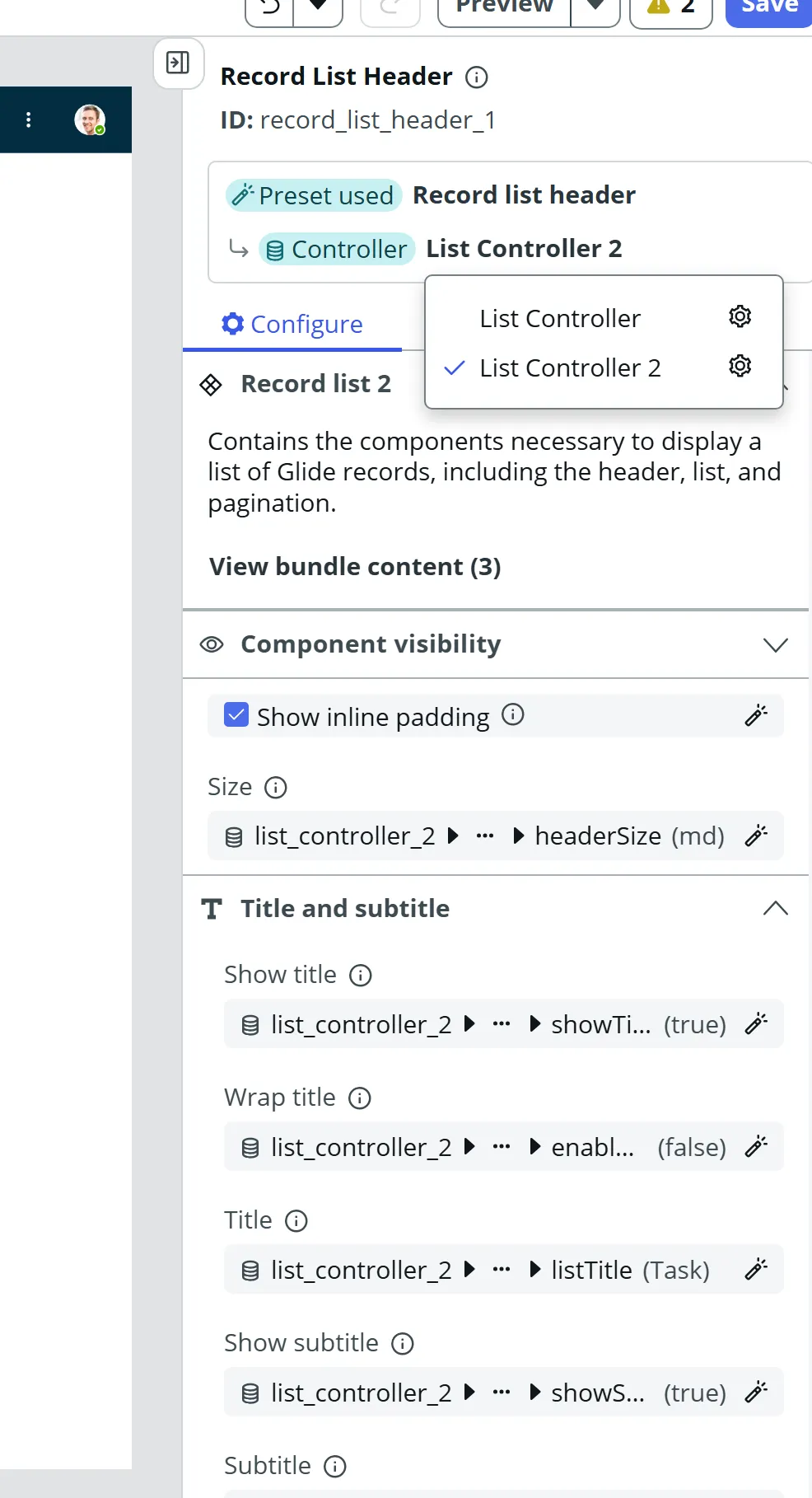
In the Content panel, select Record List Header. At the top of the configuration panel, under Controller, click the controller name, for example List Controller 2, then click the gear icon next to it. The Edit List Controller window opens.
Set the table and fixed filter
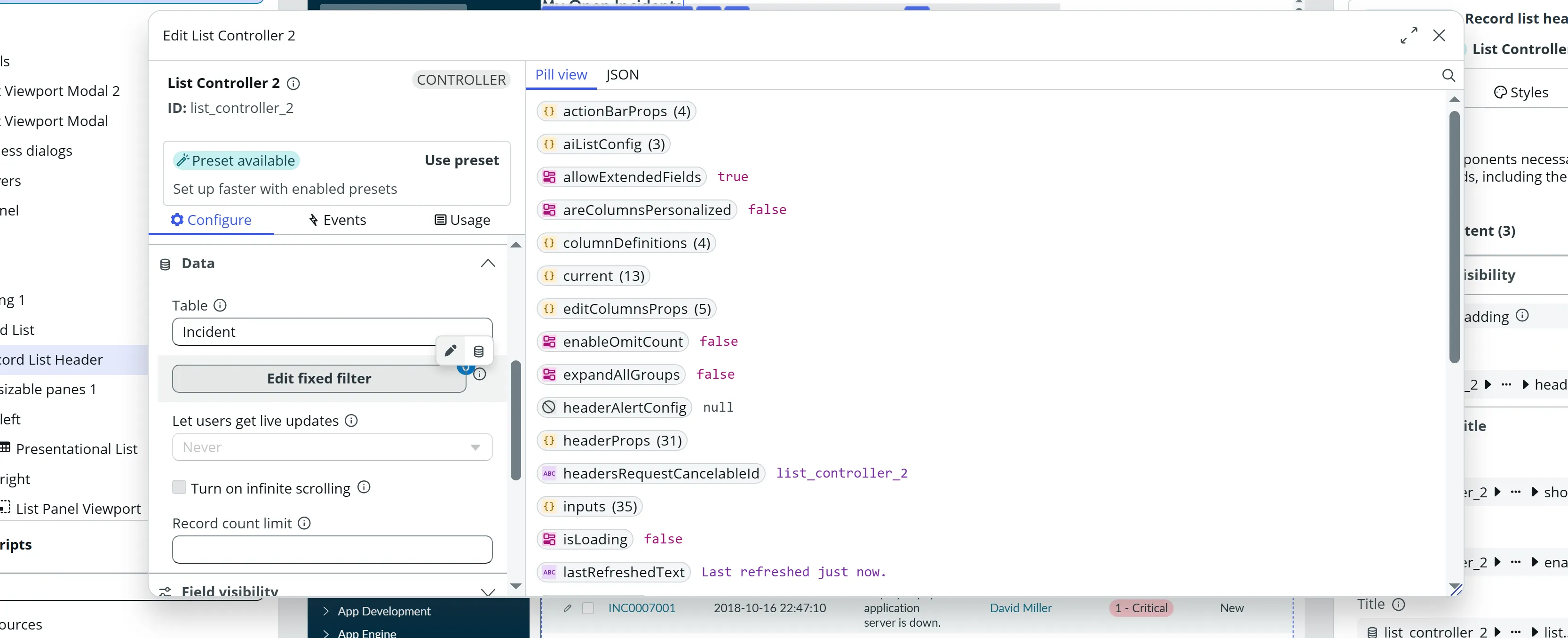
In the Data section, change Table to Incident. Click Edit fixed filter and build the condition Active is true AND Assigned to is (dynamic) Me. The default incident columns already include Number, Short description, Priority and State.
Save, preview and test
Close the controller window and select Save in the top right. Then select Preview and check each acceptance criterion. To test the assigned-to rule, impersonate another user who has incidents assigned to them and open the page again: the rows should change.
Import the solution into your PDI
The solution update set builds the same page in its own experience at /now/glidenest-uib-1-5/, so it never clashes with what you built yourself.
- In your PDI, go to System Update Sets > Retrieved Update Sets.
- Click the related link Import Update Set from XML and upload the file you downloaded.
- Open the imported update set, click Preview Update Set, then Commit Update Set.
- Open the finished page, then open it in UI Builder to see exactly how it is built.
Check your build
Test your page against each criterion, then tick it.
Ready for more? The Practice page has easy, medium and hard challenges on this topic, built the same way.
Practise more →What you just practised
Look back at the six pieces from the first lesson of this course. You created an experience with its own URL, added a page to it, and worked in its default variant. You placed a Heading and a Record List on that variant and set their properties on the Configure tab, then saved and previewed it.
You also met your first controller. The Record List is really a bundle of ComponentA ready-made building block you place on a UI Builder page, such as a button, a list, a card or a set of tabs.Learn more (a header, the list and pagination), and none of them fetches records itself: the List Controller does, using the table and fixed filter you set. Controllers and Data resourceSomething you add to a UI Builder page to fetch data, such as a list of records, so components can show it.Learn more are how UI Builder pages get their data, and you will learn them properly in the Data and State module.
What’s next
You have finished the Foundations module and built your first working page. The next module, Components and Layout, starts with Components and their properties: what components can do, and how to configure them well.
Was this lesson helpful?
Thanks! Glad it helped. 🙌
Thank you. We will use this to improve the lesson.
Spotted a mistake, or a step that looks different in your instance?